Real projects

Case studies

For clarity, we group case studies of all clients under the letter A.

A

Letter A

An overview of clients and projects grouped under the same letter of the alphabet.

Case study 1

Digitizing a law firm: from email and remote desktop to a clear Microsoft 365 setup
Digitizing a law firm: from email and remote desktop to a clear Microsoft 365 setup

Summary

The law firm worked via remote desktop, WhatsApp, and forwarded emails. Documents were physically tied to one computer in the office. Today each client has their own workspace in Microsoft 365, and the lawyer can access everything from anywhere — from a laptop, phone, or borrowed computer.

“I can now see exactly which tasks I assigned to my secretary and which she then completed. I can also work from anywhere, and most importantly I have access from my phone.” — Mgr. Romana Mrózková

Starting point

Mgr. Romana Mrózková’s law firm operated before our cooperation in a way that is fairly common at smaller practices. Core work functioned, but the system rested on older habits: files were stored locally on office computers, document access happened mainly via remote desktop, and communication between the lawyer and the secretary was split between email and WhatsApp.

Whenever something needed to be assigned, supplemented, or looked up, people often worked through email threads, forwarded attachments, and manually maintained folders. Requests were not tracked in one system, and it was not always immediately clear what was already done, what was in progress, and where the latest version of a document lived.

The same applied to scanning. Documents were scanned via the printer or a mobile app, then emailed, and only then manually filed into the correct folder. The process worked but involved unnecessarily many steps.

What we changed

We moved the firm into Microsoft 365 and structured it to match how the law firm actually works.

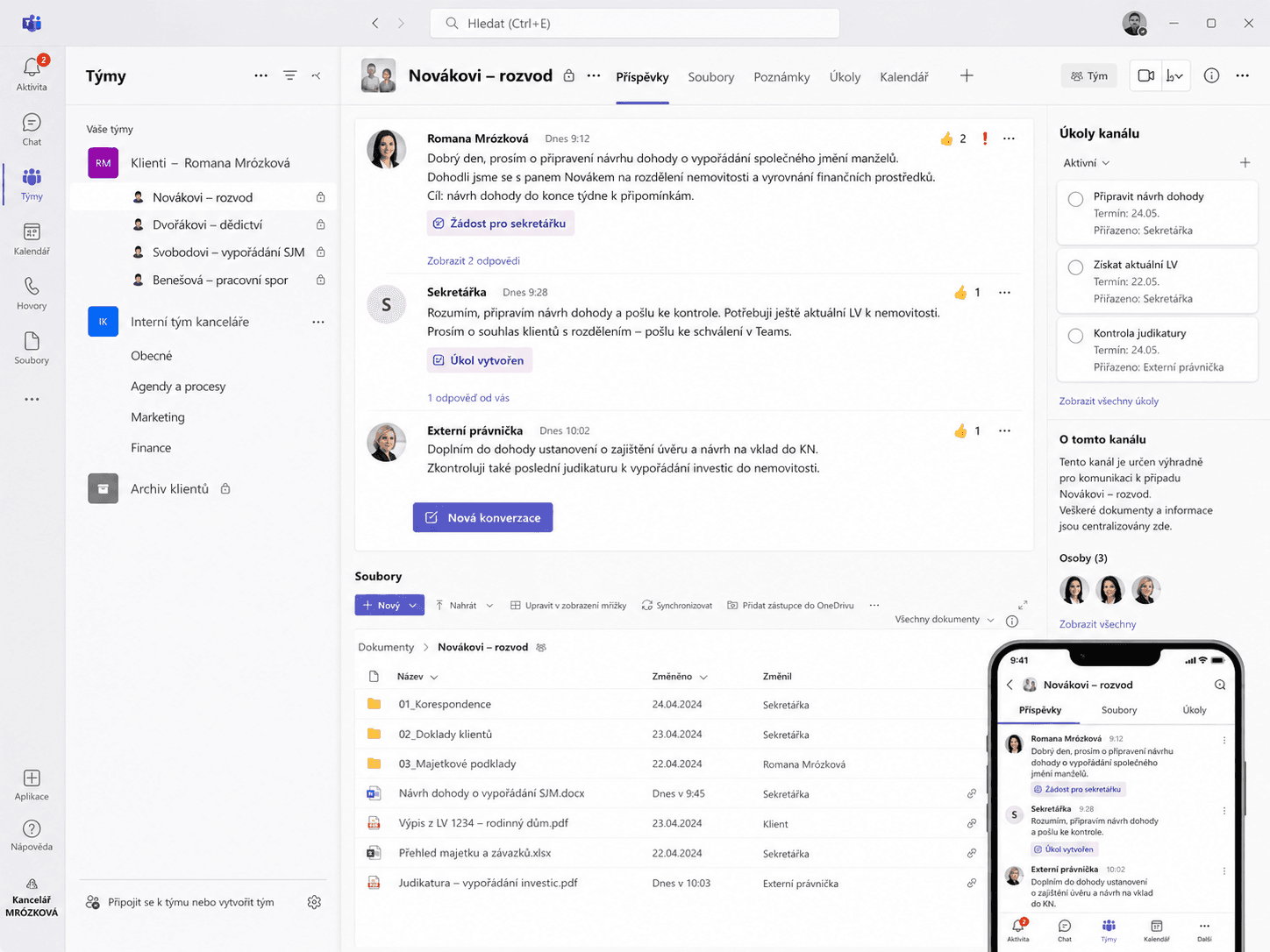
The guiding principle was: each client has their own workspace.

For each client we created a separate team in Microsoft Teams. That team has its own SharePoint space where all documents for that client matter are stored. Communication, requests, and files are therefore no longer scattered across email, WhatsApp, and local folders but are kept directly with the specific client.

In practice, when the lawyer needs something from the secretary, she @mentions her right in Teams on that client matter. The request surfaces in the secretary’s activity feed, and both sides can trace what was assigned, when, and in what context.

Access from anywhere, not only via one computer

One of the biggest practical shifts is moving from working “on one office computer” to cloud access through Microsoft 365.

Previously, documents were physically tied to office computers and remote access went through remote desktop. That meant the practice remained technically dependent on a specific location and specific infrastructure.

Today the lawyer can sign in to her work account from anywhere — from a laptop, a borrowed computer, or her phone. If she is away from the office, travelling, or on holiday, signing in to Microsoft 365 immediately shows her workspace, client teams, documents, and communication.

The difference is fundamental: instead of remoting into one computer, the firm has a cloud workspace that works from anywhere.

Documents and scanning

One practical change was simplifying work with scanned documents. Instead of scanning a document, emailing it, and then filing it manually, it can now be scanned straight into the correct SharePoint folder for the relevant client via the OneDrive app.

That removes several unnecessary steps from the process. The document is saved where it belongs right away, with no need to hunt for which email it arrived in or who still has to move it into a folder.

Working with an external lawyer

A major improvement also came when collaborating with another lawyer. Previously, she had to be sent the necessary documents and information separately — more emails, more attachments, and a greater risk that someone would work from an outdated version of a document.

Now she can be added to the specific client team with one click. She immediately gets access to all relevant documents, communication, and case context — and only to what she should actually see.

AI as a helper in legal work

Part of our cooperation was demonstrating practical use of AI tools for legal work. We focused especially on longer documents, judgments, and legal materials.

We showed how tools such as NotebookLM and Gemini Deep Research can speed up orientation in documents, drafting summaries, and finding answers grounded in specific sources.

In legal work it is important not to treat AI as an authority. Used appropriately, it can significantly speed up work with materials, especially where you need to move quickly through a larger volume of text and find relevant passages.

Outcome

  • documents available securely from anywhere via Microsoft 365
  • each client has their own space in Teams and SharePoint
  • communication happens directly on the specific matter
  • requests to the secretary are easier to trace
  • an external collaborator can be added with one click
  • document scans are saved straight into the correct client folder
  • less manual administration, less forwarding, less searching

Tools used: Microsoft 365, Microsoft Teams, SharePoint, OneDrive, NotebookLM, Gemini Deep Research
Case study 2

Account Professional a.s. — long-term cooperation

Account Professional a.s. is an accounting firm that processes payroll, invoicing, and accounting for more than 500 companies. As part of long-term cooperation we built several solutions — from simple desktop tools through RPA automation to a custom AI assistant in Outlook.

Each project below addresses a different everyday problem from life at an accounting firm.

Email assistant in Outlook over a proprietary knowledge base

Summary

Writing corporate emails with a generic AI tool is not enough — the reply must draw on specific offers, calculations, and how that company communicates. For Account Professional we therefore built a custom assistant directly in Outlook that pulls from the firm’s knowledge base, not from the internet.

“The email assistant works better than Microsoft’s Copilot.” — Account Professional a.s.

Starting point

Account Professional a.s. handles a large volume of email every day. Some answers repeat, but they are never identical. The reply often depends on the client context, prior offers, calculations, internal materials, or how the firm handled similar situations in the past.

A standard AI assistant can draft a generic email. For corporate communication that is not enough. For a suggested reply to be truly usable, it must draw on the firm’s specific knowledge — past replies, price quotes, calculations, and other verified materials.

What we built

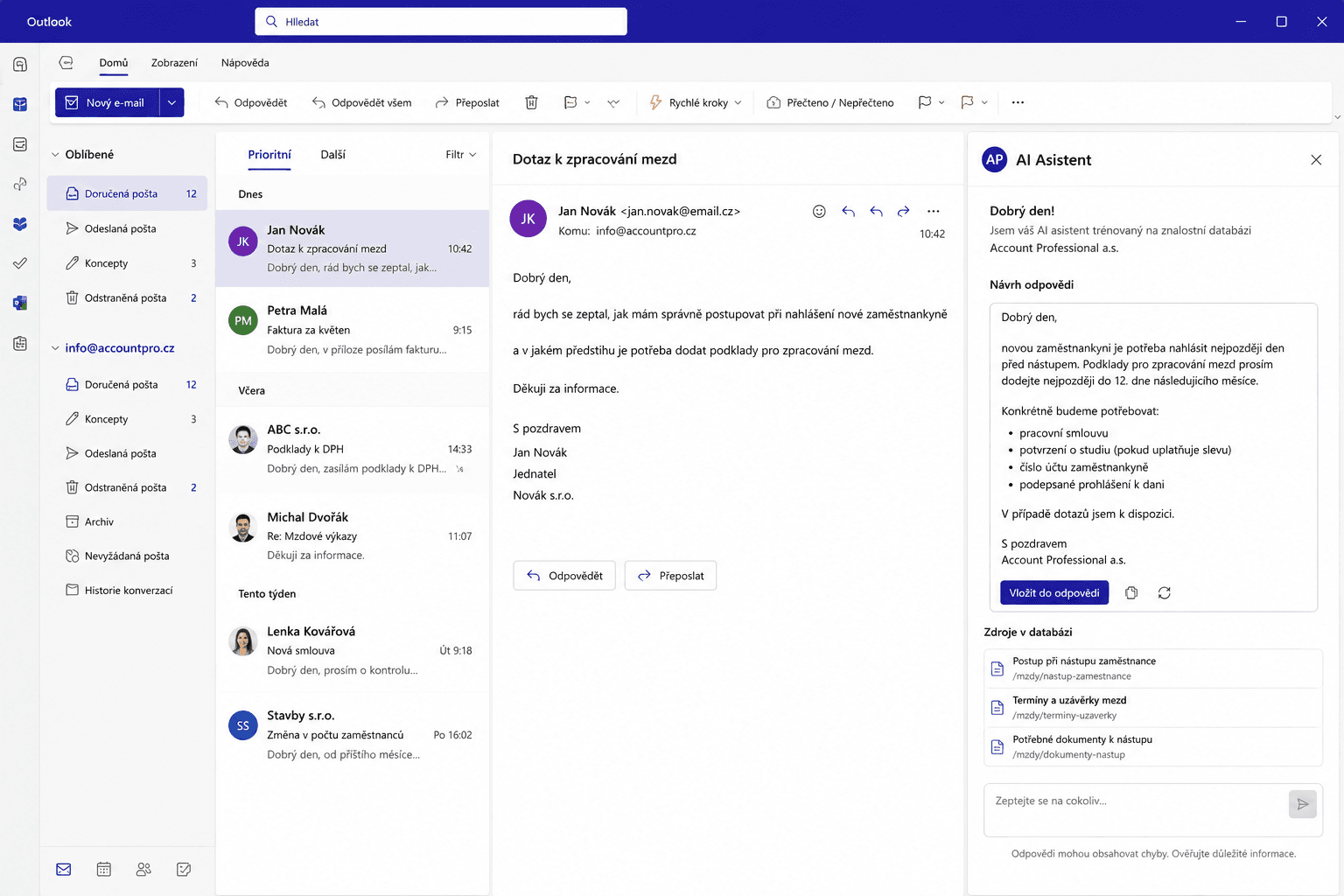
For Account Professional a.s. we built a custom email assistant directly in Outlook. The solution is built on RAG technology (Retrieval-Augmented Generation — a method where AI first retrieves relevant information from company sources and only then drafts an answer from them).

We prepared Azure Blob Storage to hold firm materials: past email replies, price quotes, calculations, and other context important for drafting replies.

Those documents are then processed and converted to vector form using Azure AI Search and Azure Vectorizers. That means the assistant does not rely only on a general language model when drafting a reply — it can retrieve relevant information from the firm’s knowledge base.

How it works in practice

The user stays in Outlook. When they want to reply to an email, they open the firm’s email assistant with one click.

The assistant automatically sees the email being answered. The user can add their own instructions — for example what tone the reply should have, what to emphasize, or what to watch out for.

Based on the current email and relevant firm materials, the assistant prepares a suggested reply. The user can edit, shorten, supplement it, or insert it into the draft reply in Outlook with one click.

The result is not a generic AI answer but a draft grounded in the firm’s real know-how.

Why a custom solution instead of standard Copilot

Microsoft Copilot can help with general productivity. Here, however, we needed something tailored to how the firm communicates and working with its own historical materials.

The custom assistant has a decisive advantage: replies are not generated only from a general model but over the firm’s knowledge base. That makes them more relevant, more specific, and closer to how the firm actually talks to its clients.

Outcome

  • reply drafts directly in Outlook
  • work with the current email without copying text
  • use of past replies, quotes, and calculations as sources
  • faster preparation of client communication
  • more consistent reply style across the firm
  • optional custom instructions before generation
  • insert draft into the reply with one click

Tools used: Azure Blob Storage, Azure AI Search, Azure Vectorizers, Outlook add-in, backend API, HTML frontend, RAG architecture

Automation of monthly payroll processing

Summary

Every month the same steps: download documents from the accounting system, name them, save them, send them to clients, send them to authorities. Accountants performed these steps manually — that is exactly what we automated. The accountant stayed in charge of professional review; the system took over the routine.

“Payroll automation saves each accountant 3 hours of work every month. Multiplied by twenty employees — that’s tangible help.” — Account Professional a.s.

Starting point

As an accounting firm, Account Professional a.s. processes payroll for its clients every month. Payroll accounting itself requires professional work from accountants, but after calculations finished the same series of routine steps repeated each month.

Accountants had to find the correct company and period in the Premier accounting system, download payslips, reports for health insurers, reports for the social security administration, and other related documents. Documents were then saved, emailed to clients, sent via Data Box messages to the relevant institutions, and filed in internal systems.

The process was well defined but time-consuming and repeated month after month. That kind of work is ideal for automation: the accountant should verify correctness, not click through the same steps by hand.

What we built

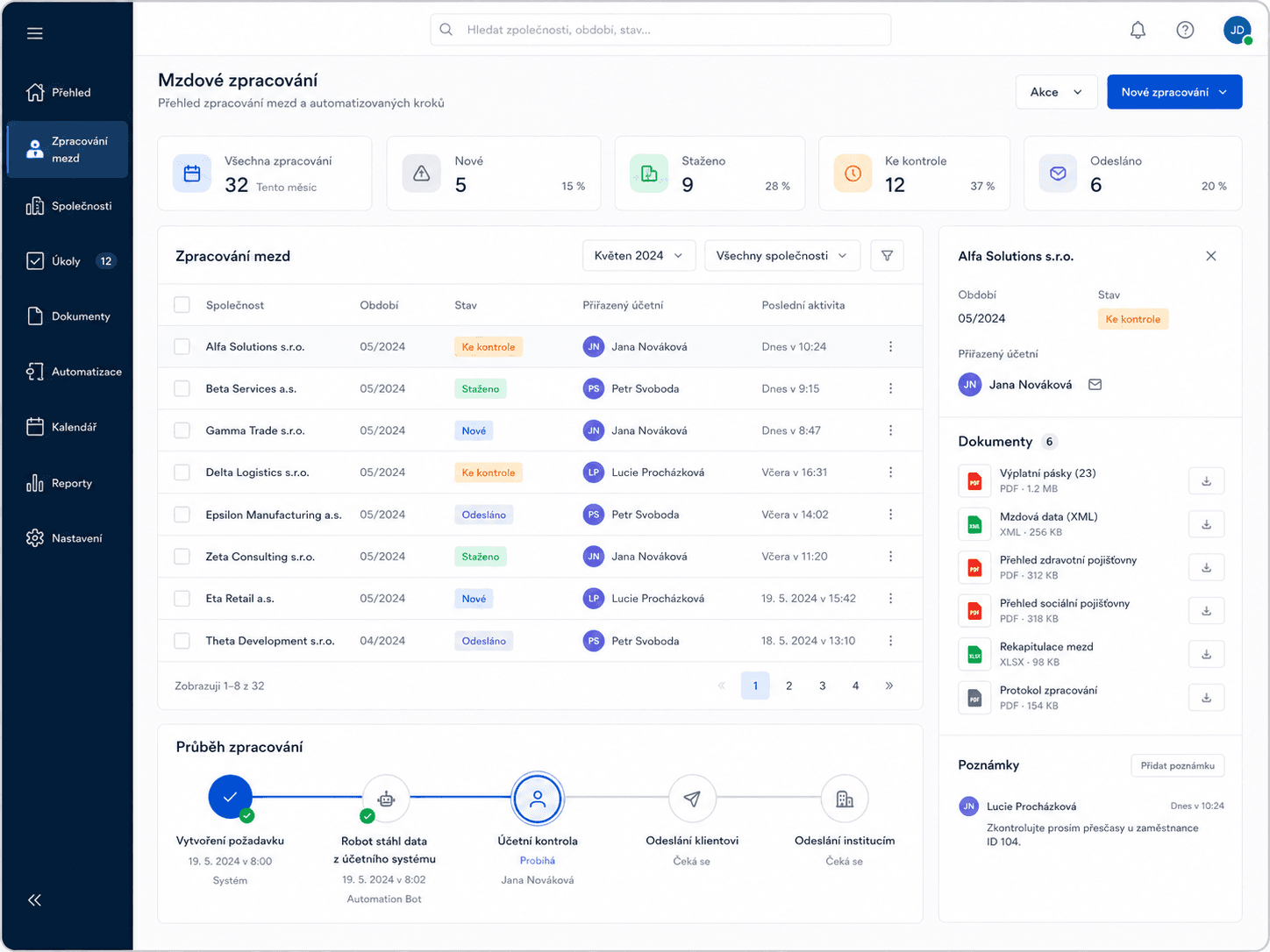
We designed automation linking Microsoft Power Platform, the Premier accounting system, and the firm’s document storage.

The foundation is a database in Microsoft Dataverse. On top of it sits a model-driven app available directly in Microsoft Teams. Accountants do not need to launch a separate tool — they start the whole process from the environment they already use daily.

In the app the accountant selects the company, period, and other required details. On confirmation, a new Dataverse record is created that automatically triggers the downstream process.

How the automation works

After the record is created, Power Automate Cloud picks up the request. It passes the necessary variables to Power Automate Desktop.

Power Automate Desktop acts here as RPA (software that drives an application like a human would). The robot opens the Premier accounting system, enters the selected company and period, and downloads the required documents:

  • payslips
  • XML files
  • reports for health insurers
  • reports for the social security administration
  • other related PDF documents

Documents are first saved to a local directory. Via the on-premises Data Gateway they are then securely handed back to the cloud Power Automate flow.

Review before sending

The automation is not meant to remove the accountant from the process. On the contrary — the accountant remains at the control point where professional judgment matters most.

After download, the accountant can review everything. Only after confirmation does automation continue: documents are saved to SharePoint, emailed to the client, sent via Data Box to the relevant institutions, and marked complete in the app.

The accountant thus sees process status in the app and does not have to manually check what has already been done and what is still pending.

Outcome

  • less manual work in monthly payroll processing
  • lower risk of a forgotten step
  • a uniform procedure for all clients
  • document review before sending stays with the accountant
  • automatic saving of outputs to SharePoint
  • automatic sending to clients and institutions
  • visibility into process status directly in Microsoft Teams

Tools used: Microsoft Dataverse, model-driven app, Microsoft Teams, Power Automate Cloud, Power Automate Desktop, on-premises Data Gateway, SharePoint, Premier

Converting Polish accounting Excel files into Premier-ready format

Summary

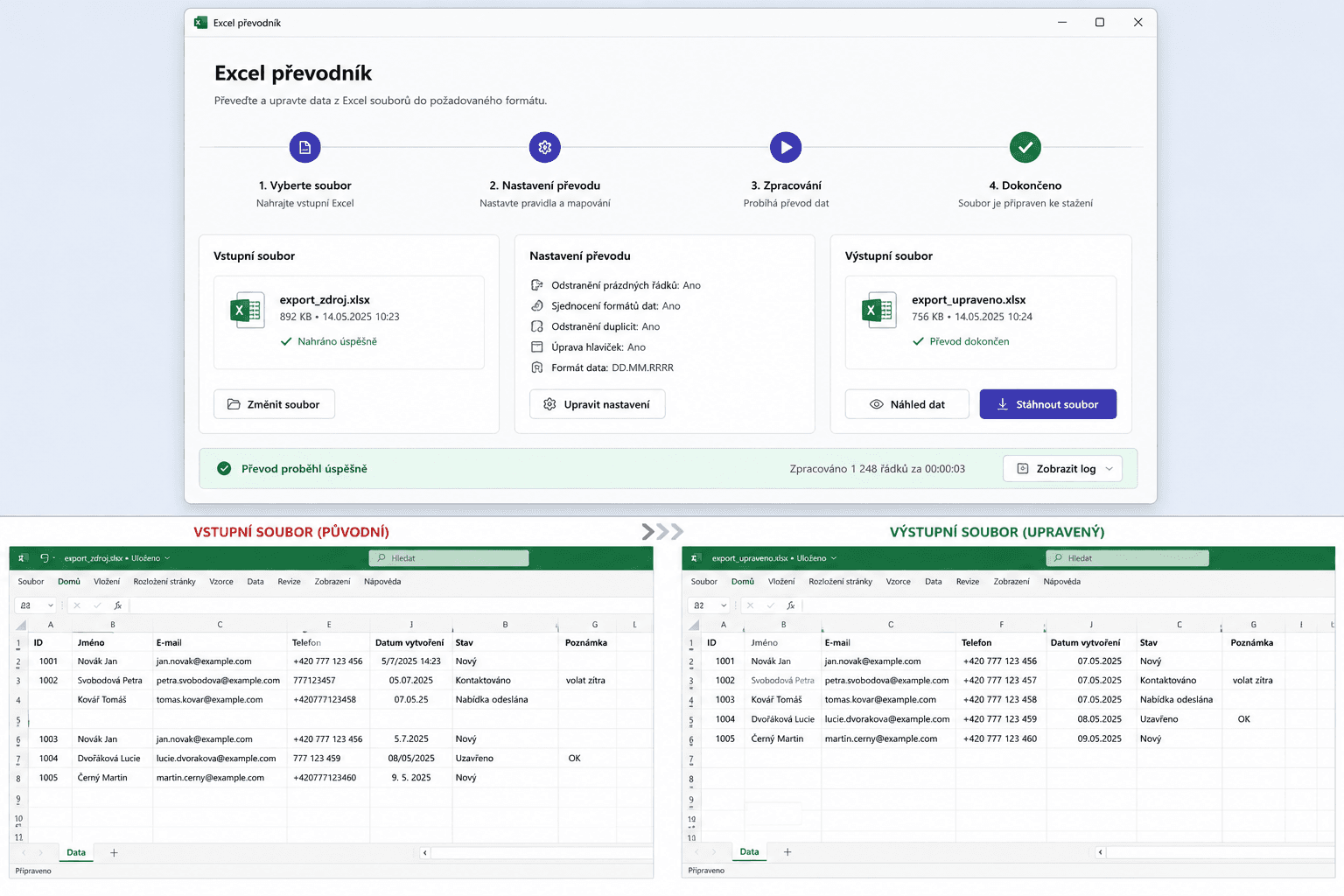
Polish clients sent invoices in Excel. The layout did not match the Premier accounting program — every time, the accountant had to rearrange columns by hand. We built a simple tool: drag the file onto the desktop icon, and a correctly formatted Excel appears on the desktop. Done.

Starting point

Accountants at Account Professional a.s. regularly receive Excel spreadsheets from Polish clients with accounting data, for example issued invoices. Those files are exported from Polish accounting or invoicing systems.

The problem was not the data itself but its structure. Columns, field order, and table layout did not match what the Premier program needs for import.

The result was always similar: the accountant had to take the received Excel, edit it manually, rearrange columns, and prepare it in the correct format. It was not complex professional work but a repetitive mechanical task that consumed time and opened room for errors.

What we built

In Microsoft Excel we used Power Query to prepare a transformation script that automatically converts the original table into the structure required for import into Premier.

So the accountant does not have to work directly in Power Query, we wrapped the whole solution in a simple BAT-based launcher on the desktop.

How it works in practice

When the accountant receives an Excel from the client, there is no manual editing:

  1. Excel arrives from the client
  2. The accountant drags it onto the desktop app
  3. A corrected file appears on the desktop
  4. The file is ready for import into Premier

Why this makes sense

Not every automation has to be a large system. Sometimes the greatest value is a simple solution that removes repetitive manual work right where it originates.

Here the same data adjustment repeated every month. It did not make sense for the accountant to do it by hand. A small tool that takes over exactly that step was enough.

Outcome

  • no more manual column rearrangement
  • lower risk of errors when adjusting data
  • faster preparation of files for import
  • very simple to use — no technical tool UI opens
  • output Excel ready for Premier import

Tools used: Microsoft Excel, Power Query, BAT launcher, Premier

One-off risk screening of business scope across 500+ companies

Summary

One client had an overly generic business object registered in the commercial register — potentially problematic under case law. The immediate question: how many other clients have the same issue? Manually checking 500+ companies would have taken days. Automation did it in hours.

Starting point

Account Professional a.s. serves more than 500 companies. At one of them, a problem arose with an overly generic business object entered in the commercial register.

The wording was “manufacturing, trade and services not listed in Annexes 1 to 3 of the Trade Licensing Act.” Under Supreme Court case law, such a broad definition can be regarded as indefinite because it is unclear what the company’s actual business object is.

Manual review would mean going through hundreds of companies one by one, finding them in the commercial register, opening extracts, locating the business object, and assessing whether the entry was risky. For more than 500 companies that would be slow and inefficient work.

What we built

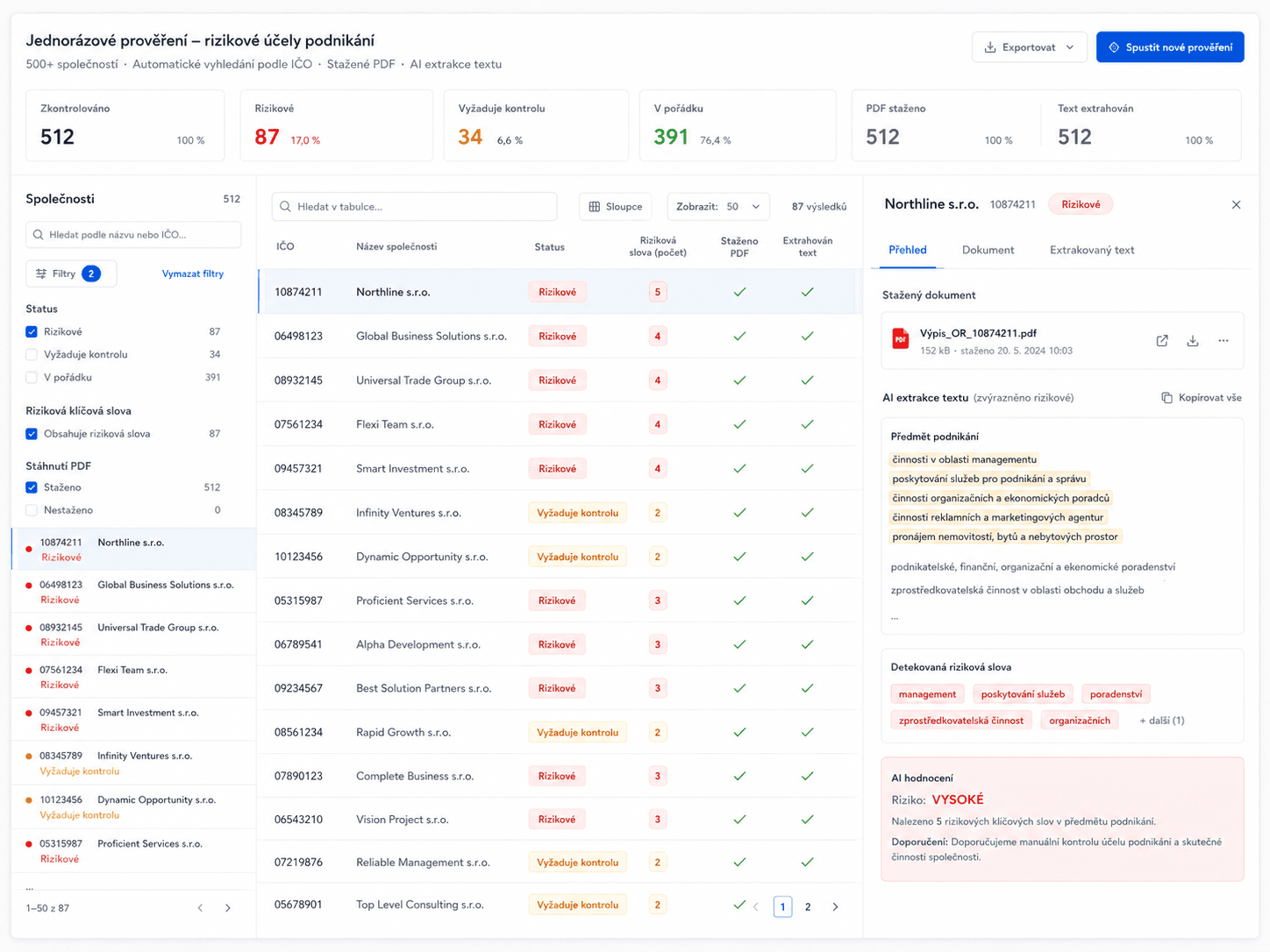
A Python script looked up individual companies by identification number (IČO) on justice.cz and downloaded their current extracts as PDF.

We then used AI-assisted processing to extract business objects from the PDF extracts into a clear Excel table. Each company had its own row with the relevant commercial register text pulled out.

How the review worked

Once the Excel existed, there was no need to open hundreds of PDFs by hand. Data was in one place and could be filtered systematically.

With AI support we identified companies whose business object was stated only in a generic formulation without further specification. That produced a concrete list of clients to whom Account Professional a.s. could send a warning.

Importantly, AI did not decide the legal question here. It helped extract and classify text. Final assessment and client communication remained with professional judgment.

Outcome

  • screening of more than 500 companies without manually opening each extract
  • automatic download of PDF extracts from justice.cz
  • extraction of business objects into Excel
  • fast identification of the risky formulation
  • a concrete client list for follow-up notices
  • lower risk that any client would be missed

Tools used: Python, justice.cz, commercial register PDF extracts, Excel, AI-assisted text processing

Case study 3

Autoskla Trade: from email on one computer to CRM and automated automotive glass pricing

Autoskla Trade: from email on one computer to CRM and automated automotive glass pricing

Summary

Leads arrived by email on one computer. The owner forwarded them to a personal Gmail account just to read them on his phone. Pricing one windscreen took 15–30 minutes of manual lookup — and every extra minute reduced the chance of winning the job. Today the company has CRM, unified email, and automation that finds windscreen prices itself.

Starting point

Autoskla Trade specializes in windscreen replacement and repair. Before our cooperation its technology was very outdated — not just one missing tool but an overall way of working that unnecessarily slowed day-to-day operations.

Email was set up via POP3. That meant messages downloaded locally to one computer. The owner used a workaround: he had mail from the company address forwarded to Gmail so he could read it on his phone. When he replied to a client, however, the reply went from a different email address.

The company had no CRM. Leads, notes, and tasks were handled manually, often on paper. Lead status was inferred from whether an email in Outlook was read or unread. That created confusion: if the owner opened an email, a colleague might assume the lead was handled even though nobody had called the client yet.

Step one: Microsoft 365 and unified email

We migrated company mailboxes to Microsoft Exchange within Microsoft 365.

Email is no longer tied to one specific computer. The owner and employees can access their mail from a computer, phone, or web browser. Everyone works against the same live mailbox — no forwarding to personal Gmail or replying from another address.

Step two: CRM in Microsoft Dataverse

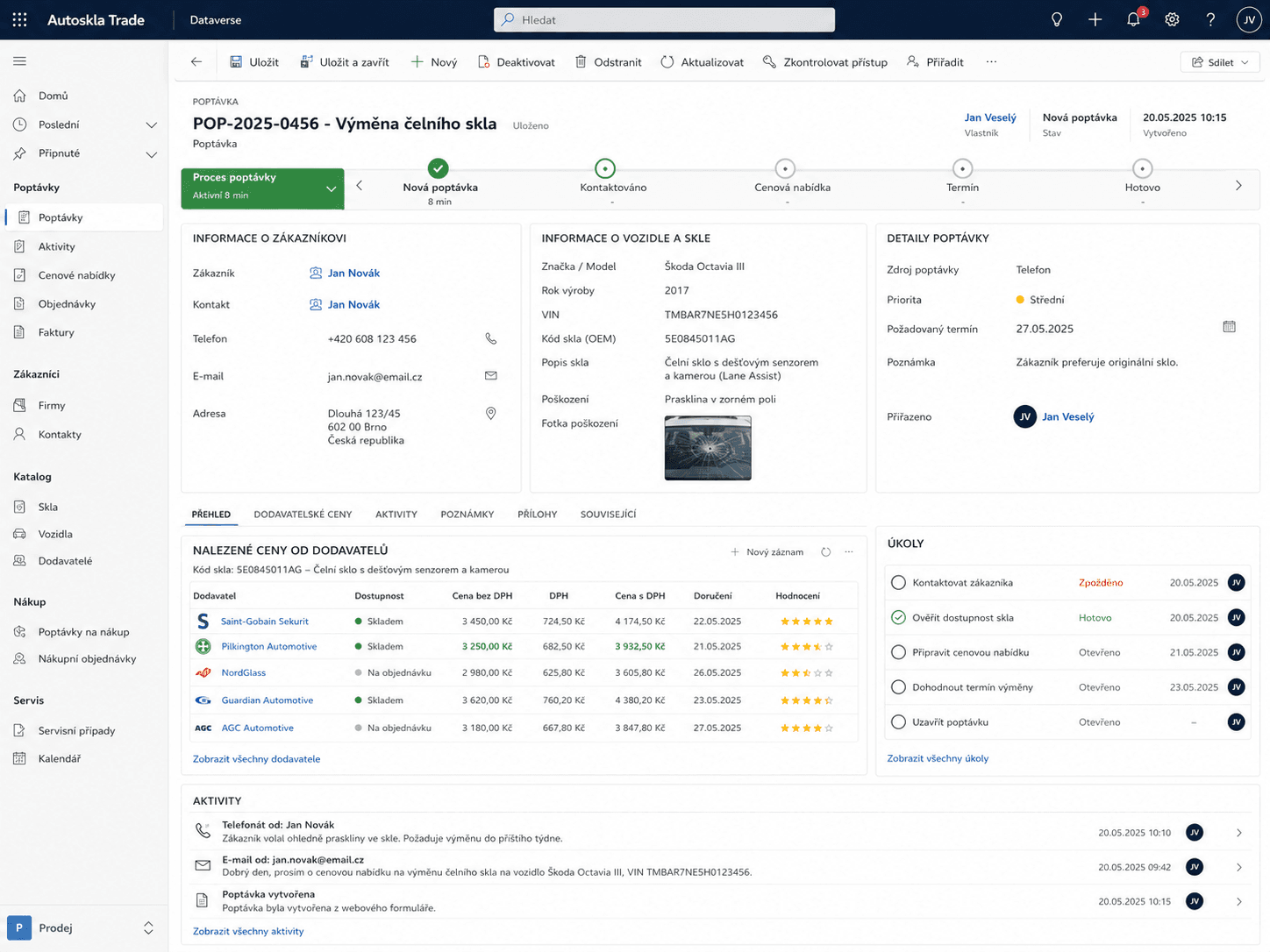
The next step was building CRM on Microsoft Dataverse with a model-driven app.

Autoskla Trade receives leads through a website form. We configured Power Automate to process those details from the incoming email and create a new lead in CRM.

Instead of manual retyping or organizing by read/unread email, the company has a clear list of all leads. Each job’s status can be tracked:

  • new lead
  • contacted
  • quote sent
  • appointment agreed
  • job completed

CRM thus became one shared space where it is obvious what needs doing, who owns it, and what stage each lead is in.

Step three: automatic windscreen price lookup

The biggest commercial gain came from pricing windscreens.

From experience the owner knew that if he calls the client within 30 minutes of the inquiry, the chance they will have the glass replaced with him rises sharply. The problem was that to call with a concrete price he first had to look up the glass price manually.

The old process was lengthy: take the VIN from the lead, enter it in a specialized system, get the windscreen Eurocode, manually search that code with several suppliers, compare prices — and only then call the client. One such cycle could take 15 to 30 minutes for one windscreen.

Automation agent across supplier portals

We built an automation agent that significantly accelerated this process.

The agent takes the VIN from CRM, finds the required windscreen Eurocode, and checks prices with multiple suppliers. Results flow back into CRM so the owner sees available prices in one place — right on the specific record.

Sales staff can call the client sooner, quote a concrete price, and improve the odds of winning the job.

Outcome

  • company email available from computer, phone, and web
  • no forwarding to personal mailboxes
  • clear CRM for all leads and jobs
  • automatic lead creation from the web form
  • clear status and assigned tasks for each job
  • automatic Eurocode and supplier price lookup
  • faster response to new leads
  • savings of several hours of manual work per day

Tools used: Microsoft 365, Microsoft Exchange, Microsoft Dataverse, model-driven app, Power Automate, CRM, automation agent, supplier portals

The greatest value was not in the technology itself but in speeding up a sales process with a direct impact on revenue.

Find out what is slowing your company down unnecessarily.

In an initial consultation, we review how you operate and propose where it makes sense to start.